Home/03 : Hardware/NullKeys

NullKeys

36 keys / Kailh Choc / ZMK over BLE / TPS43 trackpad

  1. 01Printed case
  2. 02PCB, nice!nano and standoffs
  3. 03Switch plate and trackpad
  4. 04Choc switches and M2 screws
  5. 05Keycaps and walnut veneer

Scroll to assemble

Layers

Combos on this layer

The 3D model needs WebGL, which this browser has turned off.

A split keyboard with 36 keys and a trackpad in the right half, built around one idea: every letter and every hotkey within reach of one hand, so the other can stay on the mouse. The first build took six months of spare time in fall 2023, and I have been refining the design ever since.

Role

Design, fabrication, firmware. Solo.

Tools

Fusion 360, FDM printing, ZMK, soldering

Iterations

Five case versions, three trackpad mounts

Status

Daily driver

Why build one at all

I love the puzzle of control interfaces, and the standard keyboard is a poor answer to it. Its layout is stuck in time. I wanted to challenge myself to come up with the best layout I could, in the smallest footprint possible.

The biggest slowdown on a computer is the trip between mouse and keyboard. Most ergonomic keyboards try to solve that by keeping you on the keyboard. That works for coding. It falls apart in CAD, video editing, and any workflow that jumps between programs, where the mouse is doing half the work.

In that kind of work you are rarely typing a whole word. You type the first few letters of a command, or a hotkey. So I flipped the goal: keep one hand on the mouse, and put the whole keyboard under the other one.

That set the requirements. Every key has to be pressable without shifting the hand. Common tasks live on the home row. Every letter can be typed with one hand. And every hotkey has to work from that same hand, whether it is Shift plus a key or Ctrl plus Shift plus a key.

What the design had to survive

Constraints came from three places: my hands, the manufacturing process available to me, and the firmware. Naming them up front is what turned this from a parts order into a design problem.

01

36 keys, no more

Five columns and three thumb keys per half. I broke the outer columns off the Corne PCB. Everything a full keyboard does has to be reached through layers instead of surface area, which makes keymap design the real interface work.

02

Tenting that holds

The real physical problem was tenting, and keeping the halves steady once tented. The legs fold flat into the printed base, swing out to set the angle, and have to stop the half from rocking while I type on it.

03

Wireless power budget

ZMK runs the halves over BLE, so every added component is a draw on a small cell. A trackpad polling continuously is a very different battery story from one that sleeps.

04

Room for a trackpad

The TPS43 had to fit into the right half without taking a key position, wire straight to the controller, and sleep with the keyboard so it does not drain the battery.

05

Serviceable, not sealed

Hand-soldered wiring in a printed shell fails eventually. The case had to open without destroying itself and the electronics had to come out as a unit.

06

Usable while learning it

A layout I could not type on would get abandoned inside a week. The migration path mattered as much as the end state.

What I ruled out, and why

Split ergonomic keyboards are a well-explored space. Ruling out the existing answers was faster than designing from nothing, and it forced me to name what I actually wanted.

Off the shelf ergo
Expensive, and none of them had the form factor I was looking for. They are built to keep you on the keyboard, not to work beside a mouse.
Keyboard plus trackball
A separate pointing device solves precision but keeps the round trip. It moves the problem a few centimetres closer instead of removing it.
Larger split, 60 keys plus
More keys means less layer discipline, but every extra column moves keys away from the home row and grows the footprint, which works against the whole point. Cutting keys turned out to be the constraint worth keeping.
Corne plus TPS43
A proven Corne skeleton, cut down to 36 keys, with an open firmware target, extended with a trackpad set into the right half. Known-good foundation, and the novel part is where the design effort actually goes.

Iterations

Each revision existed to answer one question. The point of printing quickly is that a wrong answer costs an evening instead of a month.
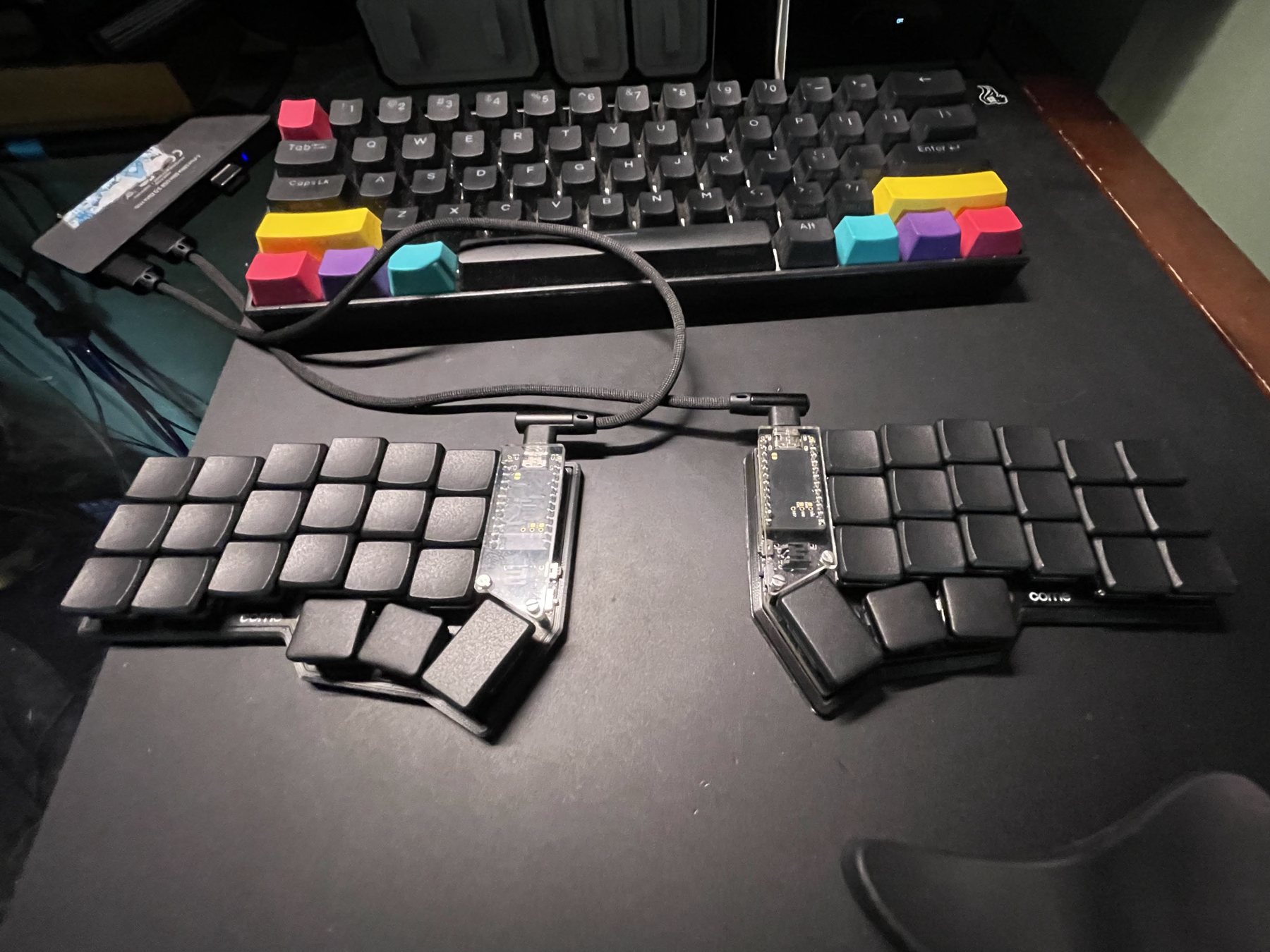
First printed test case holding all 42 keys, beside my old keyboard

September 2023

A first test case, all 42 keys

Iteration one was a case I printed as a test, still holding every key of the full Corne. It needed printed supports for the component leads under the PCB, plus standoffs and retaining C rings to hold it together. Living with it for a few days convinced me I could go even smaller.
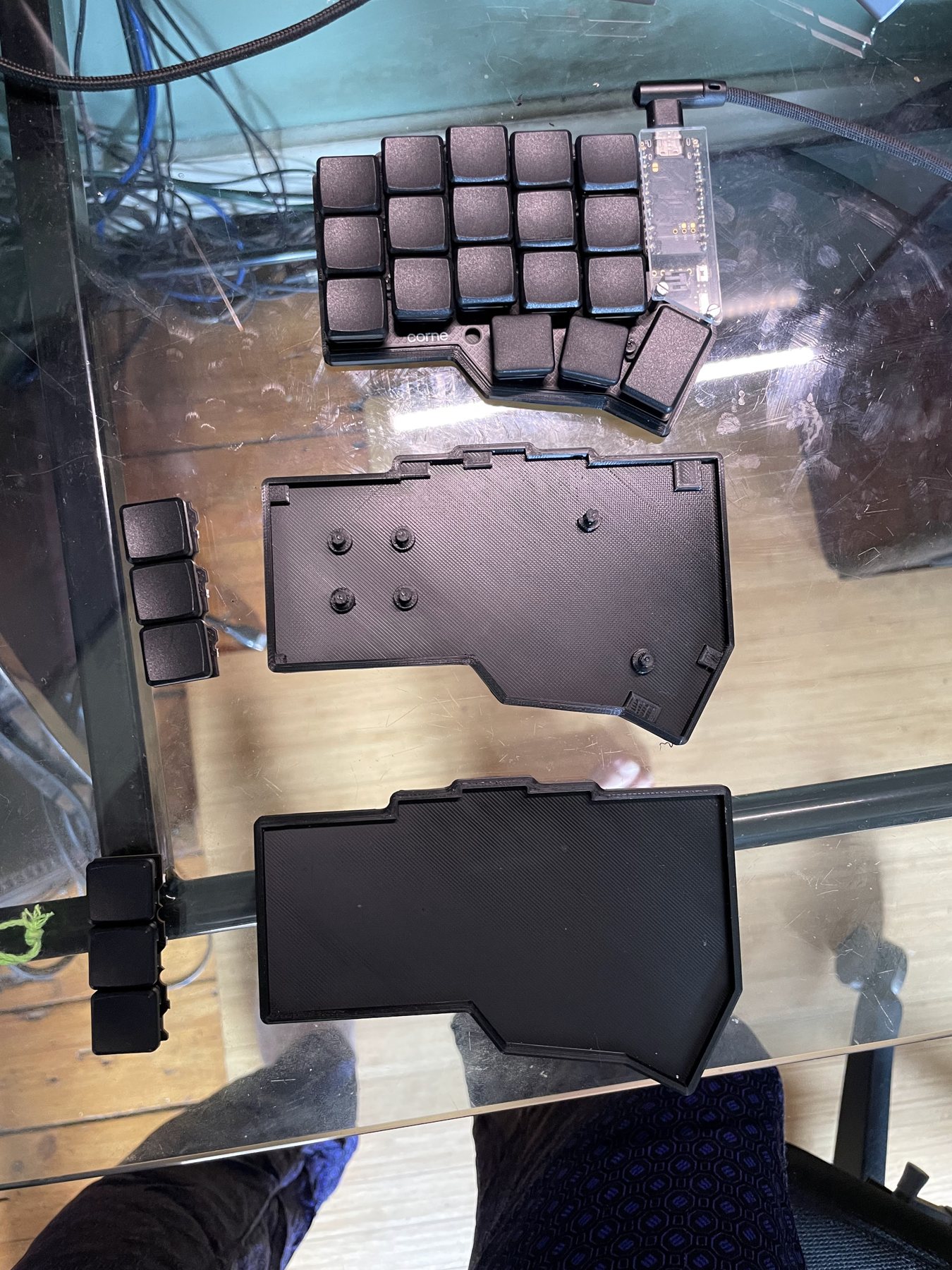
Left half with its outer column broken off, beside the first printed case parts

Four days later

Cutting to 36

The outer columns came off the PCB, the three keys on the left of the photo, and the next case was modelled in Fusion 360 around what was left: a base with standoffs for the PCB and a separate tray underneath.
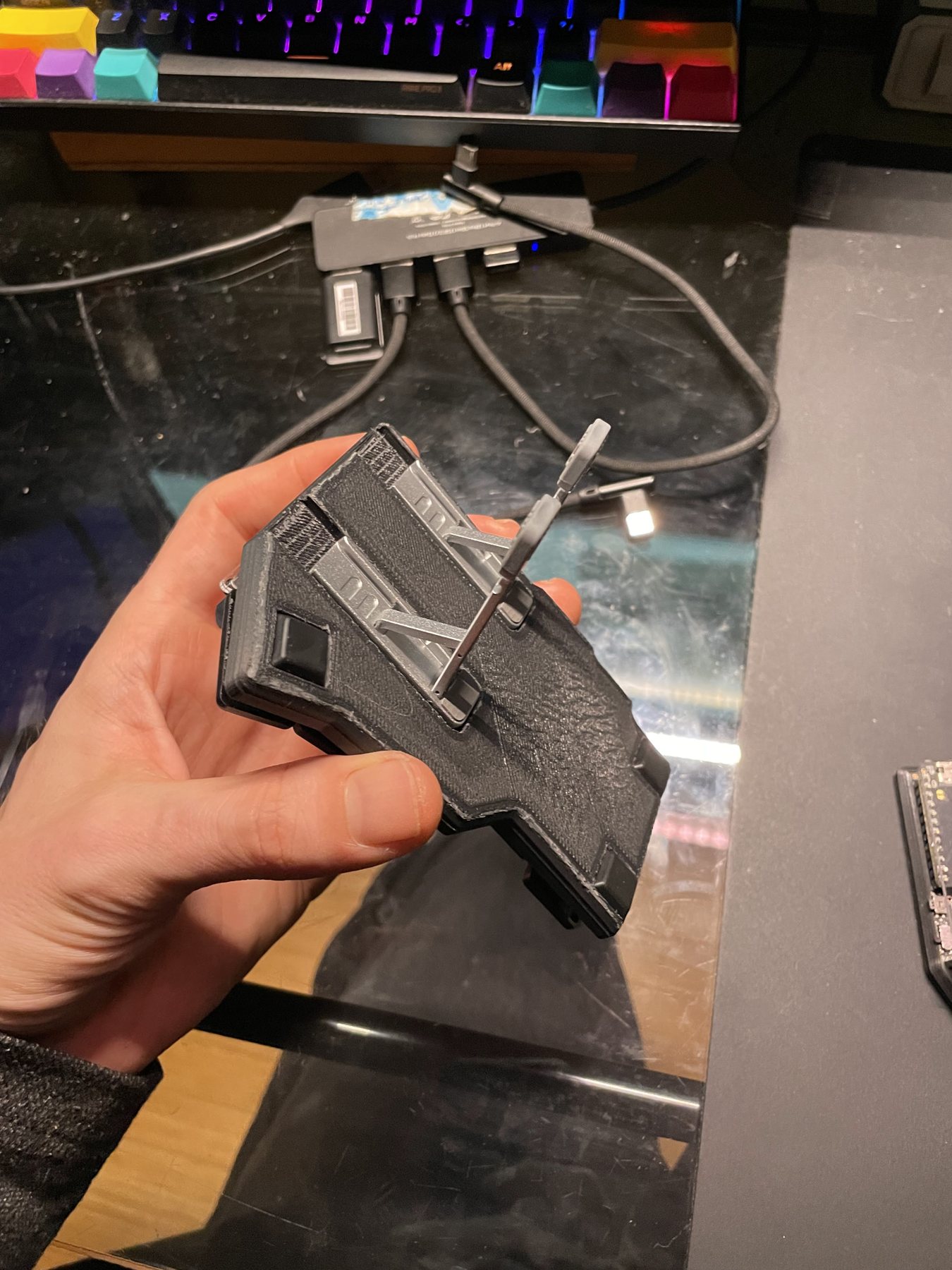
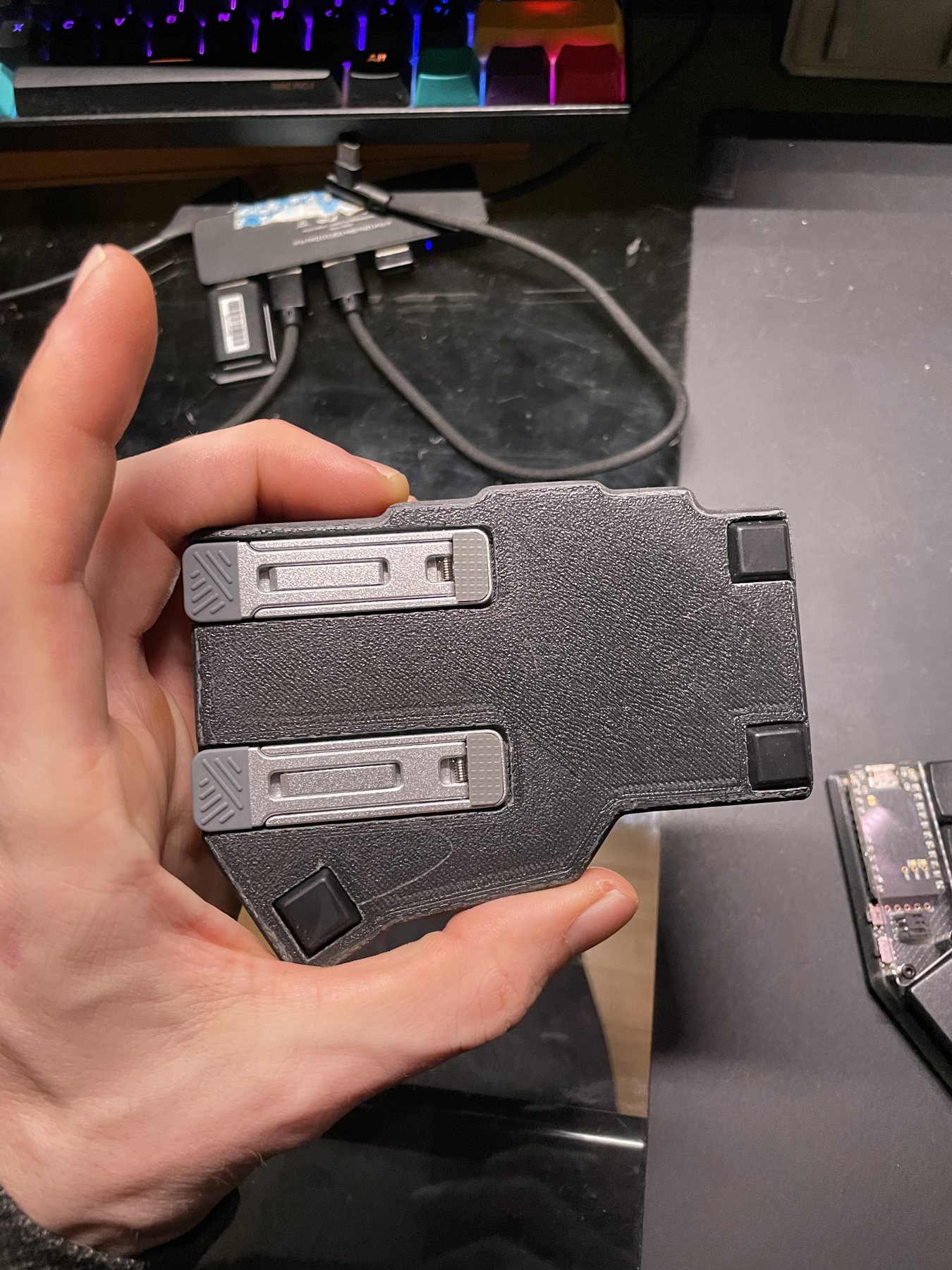
Underside of the printed case with a tenting leg swung out

October 2023

Tenting and support

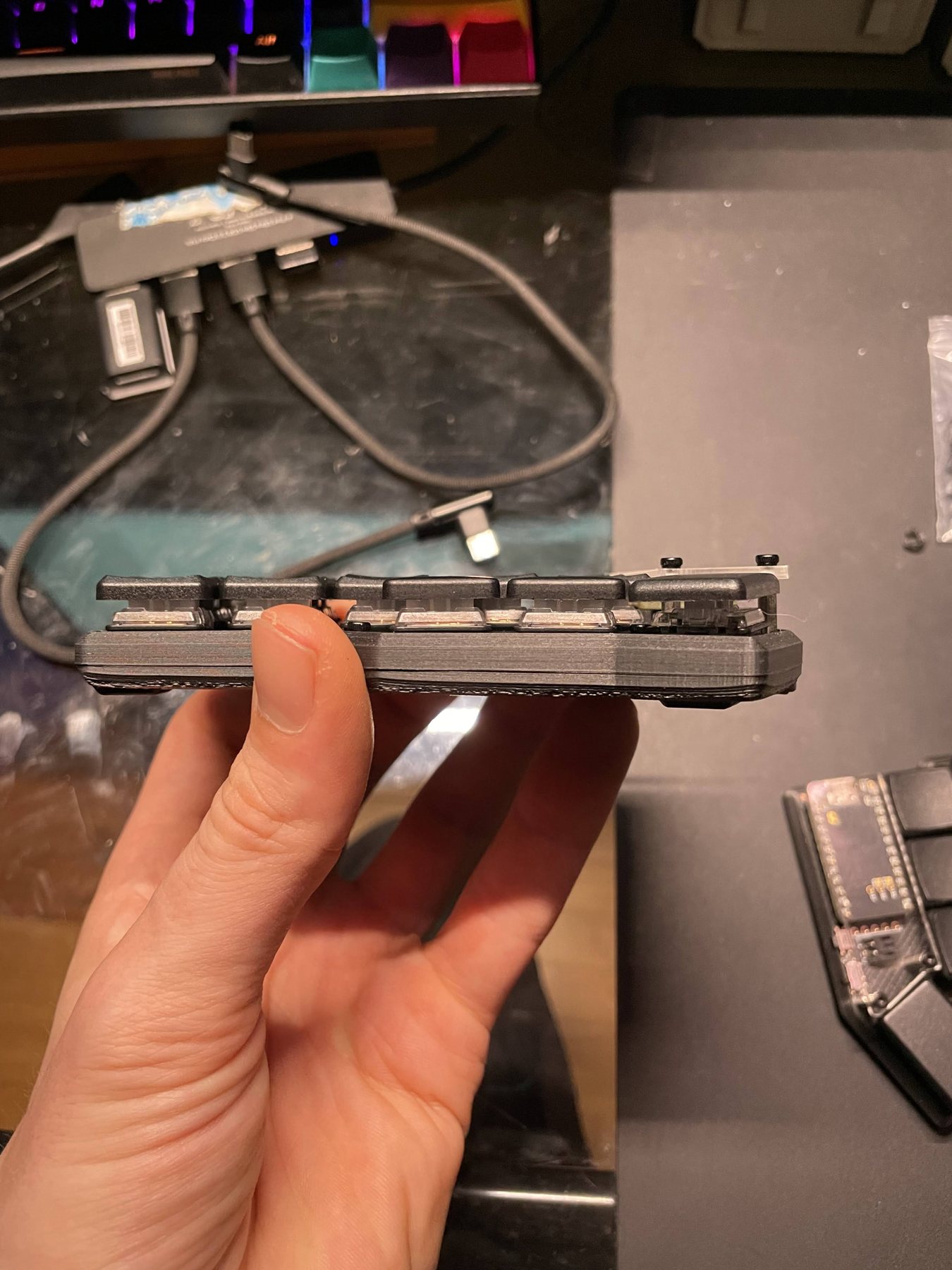
The constraint that really shaped the case. Two legs sit flush in recesses on the underside and swing out to tent the half. The case stays thin enough to hold in one hand with everything folded away.

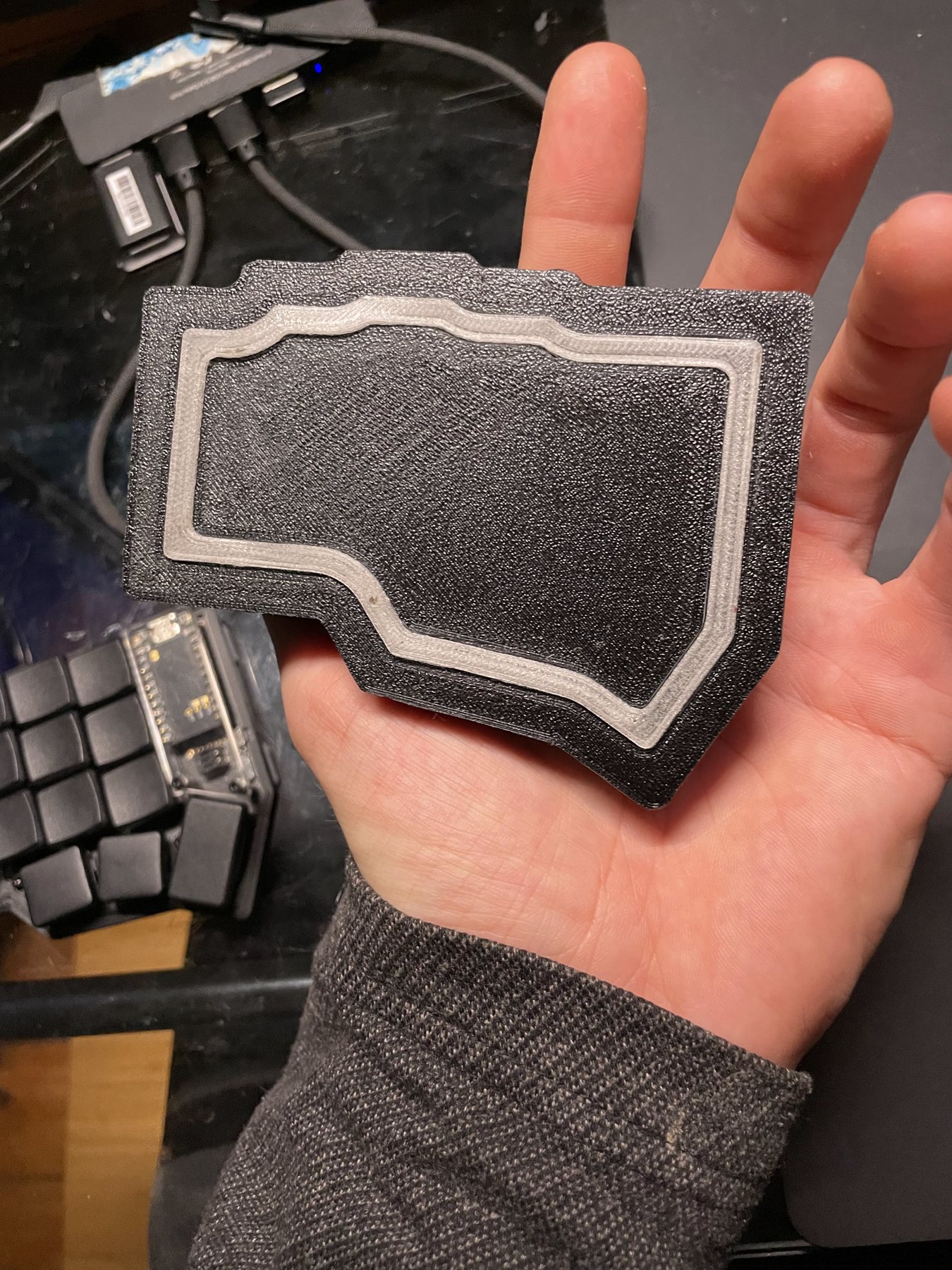
The first underside used a printed TPU foot across the whole base. It did not give enough grip, so it was replaced with rubber feet at the corners.
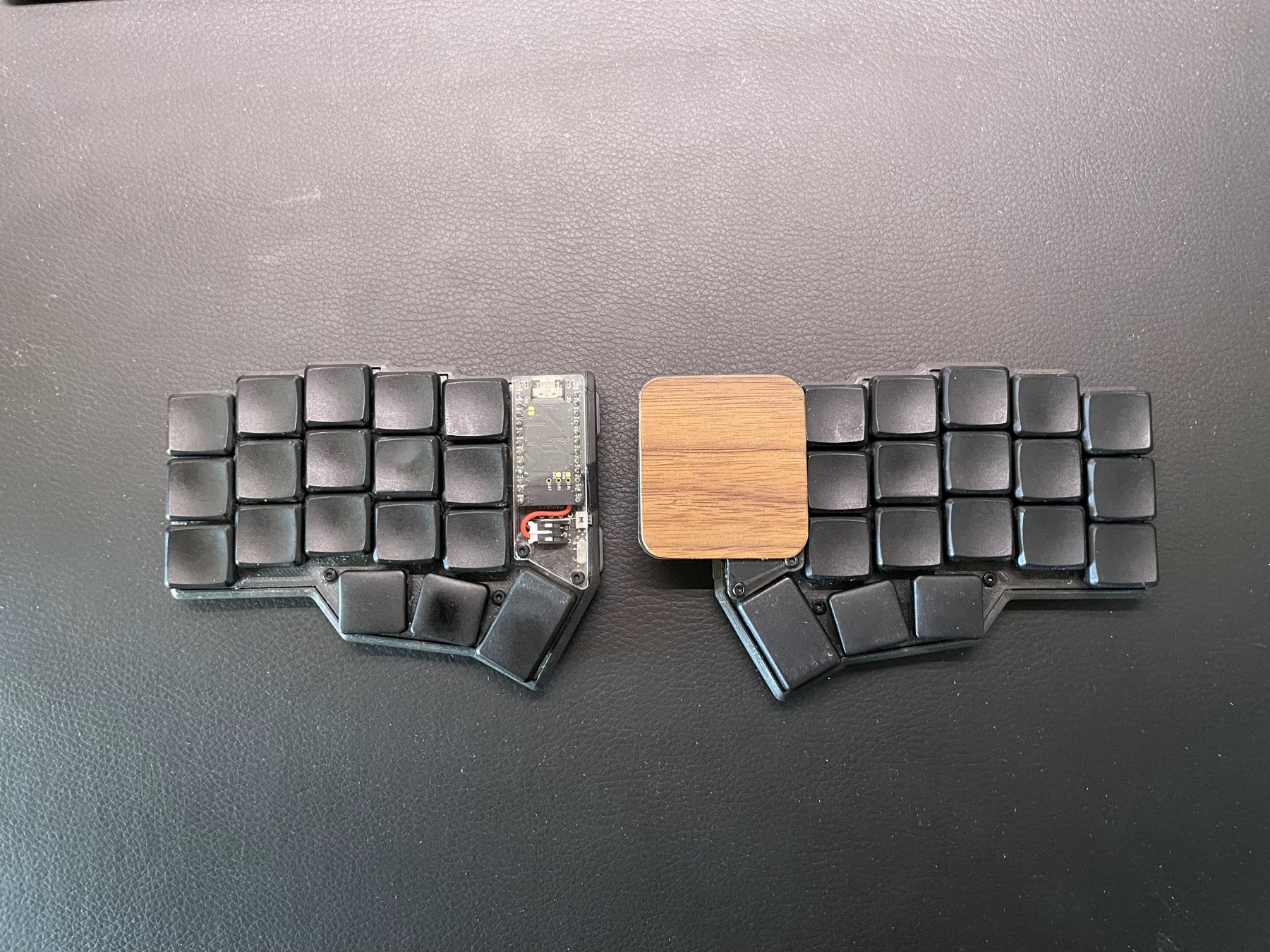
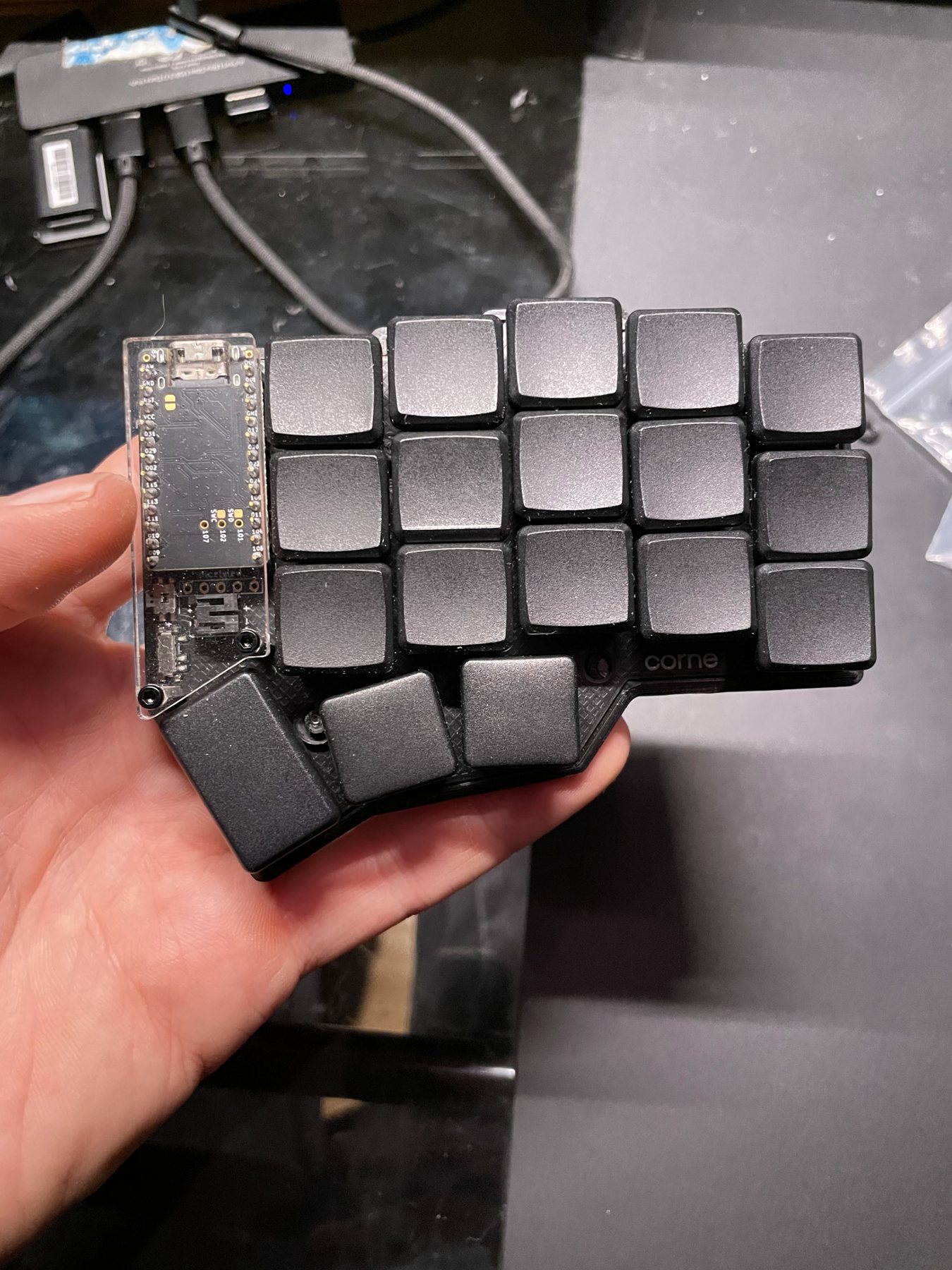
Current build from above, with the wood topped trackpad at the inner corner of the right half

Today

Adding the trackpad

On the right half the TPS43 sits at the inner top corner, where the left half has its controller window, under a walnut veneer that sits flush with the edges of its holder. It took about three mounts to get right, and it is still a work in progress.

I wanted the trackpad to be removable at first. After a few attempts at stripping a six pin ribbon cable I gave up and soldered it straight to the pads on the trackpad. Since then the work has been on tracking performance and battery drain.

TPS43 to nice!nano v2 wiring Six wire ribbon from the TPS43 to the right nice!nano. SDA to P0.06, SCL to P0.08, RST to P0.17 and RDY to P0.20 drop straight down the right edge; 3V3 and GND arc over the top to the 3.3V and GND pads on the other side. USB-C nice!nano v2right half, components down B+ GND RST 3.3V 031 029 002 115 113 111 010 009 006 008 GND GND 017 020 022 024 100 011 104 106 TPS43 Azoteq IQS550 I2C 0x74 SDA SCL 3V3 GND RST RDY FPC SDA to P0.06 SCL to P0.08 RST to P0.17 RDY to P0.20 3V3 to 3.3V GND to GND Six conductor ribbon, soldered at both ends TPS43 → I2C, 400 kHz → right nice!nano: driver, tap and drag, Y invert, 0.9x → Bluetooth split link → left nice!nano: sensitivity layers → computer

Firmware

Electronics and firmware

Switches, diodes, controller, and the trackpad on its own bus. ZMK handles the split link and the keymap; getting a pointing device to behave alongside it is where the configuration work lives.

Each half runs a Nice!Nano v2. The TPS43 is soldered straight to the right Nano's pads and talks over I2C. I moved to a fork of the Azoteq driver that ties the trackpad into ZMK's sleep states, because the original kept the pad awake and drained the right half's battery. A small custom input processor adds laptop style tap and tap to drag.

Num / SymHold A. Numbers as a numpad under the left hand, brackets under the right.
5 / 8 7 0 SHIFT 4 2 6 9 = 3 A NUM / SYM HOLD Enter CTRL . - 1 } ) \ Space SHIFT ' ] { ( [ Enter CTRL Alt REPEAT ~
ArrowsHold Z. Arrows in an inverted T, with Home, End and page keys around them.
↓ PgUp ↑ Home Space SHIFT ← C → End B Ctrl+→ END A NUM / SYM Enter CTRL Alt Q BLUETOOTH PgDn Z ARROWS HOLD Ctrl+← HOME E HAND SWAP J U Y Space SHIFT I , N HAND SWAP L K M O Enter CTRL Alt REPEAT ; H / .
GamingPress A, S and T together. QWERTY one column in, so WASD sits under the fingers. Hold the outlined key for numbers.
S R W Q G A X D E V C Shift Space T Gaming Num HOLD F Ctrl Z E HAND SWAP J U Y Space SHIFT I , N HAND SWAP L K M O Enter CTRL Alt REPEAT ; H / .

Layout

Designing the layout

36 keys means every symbol, number, and modifier lives on a layer. This is interface design with the same rules as any other: frequency drives placement, and anything you have to think about is in the wrong spot.

The letters start from Colemak, then I moved a few of them. Before moving any letter I checked why Colemak put it there, so a change would not undo something that was optimized. The moves put the most important hotkeys back where QWERTY has them. Z, X, C and V sit exactly where every program expects undo, cut, copy and paste, and S is back under the ring finger for save.

Common edits are home row combos. S and R together is Backspace, R and T is Delete, and S and T is Tab, so fixing a typo never means reaching. The S and R backspace is one of my favorite optimizations in the whole layout.

Holding R or T mirrors the right half onto the left hand, so with the right hand on the mouse the left can still type any letter. The thumbs carry Shift, Ctrl, Alt and Win, which covers every modifier combination from the same hand.

Gaming needed its own answer. A home row built for typing puts WASD in the wrong place, so two layers can be switched on for games. Pressing A, S and T together toggles a layer that puts the keys back in their QWERTY spots shifted one column in, with WASD under the fingers and Shift and Ctrl under the pinky. Holding Q on that layer brings up the numbers.
Learning it with the NullKeys overlay

Fourteen layers and two dozen combos are a lot to hold in your head. The NullKeys overlay is a desktop app I built in Godot that sits on top of everything and shows what the keyboard is doing as I use it: which keys are pressed, which layers are active, and what every key does right now. Hover a key and it explains that key on every layer, plus every combo it belongs to.

The hard part is that a computer only ever receives keycodes. Layers, holds and combos never reach it, and holding A for the Num / Sym layer sends nothing at all. So instead of guessing from keystrokes, a small ZMK module streams the physical key positions and the layer state straight from the firmware.

Keyboard

Firmware module

Listens for key position and layer events and sends 32 byte reports over Raw HID. It only streams while the overlay is asking for data, so the radio stays quiet otherwise.

Bridge

Python and hidapi

Godot cannot open HID devices, so a small Python process reads the reports and forwards them as JSON over local UDP. The overlay starts and stops it automatically.

Overlay

Godot app

Parses corne.keymap directly, so it always matches the firmware, then resolves layers, hold taps and combos and draws the result. Overlay mode draws the keys as outlines for screen recordings.

Holding Z switches the overlay to the Arrows layer, straight from the firmware

The calls worth defending

A trackpad, not a trackball or nub

A trackball is more precise and needs no calibration, a pointing stick takes almost no space. I went with a capacitive pad because it supports gestures, scrolling and zoom.

Capacitive sensing costs power, needs tuning, and is worse than a ball for fine selection work.

Modifiers that share keys with typing

Getting every modifier and the F keys onto 36 keys took the most fiddling of anything on the board. The first thumb key is a tap dance: hold it and it is Alt, tap it twice and it becomes a sticky Win key. Alt has to stay holdable for things like Alt+Tab, so Win could not simply take its place.

The other two thumbs carry Shift under Space and Ctrl under Enter. Getting those mod taps to live together, so fast typing never fires a modifier and a held modifier never types a space, took a lot of tuning. The F keys sit on their own layer, reached by holding A and the Ctrl and Enter thumb together.

Magnets

Three magnets are mounted in the case. The two halves snap together into one block, and the same magnets attach the keyboard to accessories, like a pocket mount that clips into a pocket so the halves can hang off my pants for portable use. They also stick to any metal surface for storage.

Building on the Corne rather than designing a layout from scratch

A custom matrix would have let me tune every key position to my own hand. Starting from an established Corne skeleton meant the switch plate, the firmware target, and a decade of other people's keymaps were already solved, so the design effort could go entirely into the part nobody had solved for me.

I inherited someone else's column stagger, which is a compromise for an average hand rather than mine.

Printed in place of machined or laser cut

FDM in the room beats a better process three weeks away. Being able to test a mount in the evening and print the revision the same night is what made five iterations affordable at all.

Layer lines, weaker screw bosses, and a finish that reads as prototype rather than product. Now that the design is refined, one of my next steps is a resin print to bring the build quality up to match it.

What broke

The TPU foot. The first underside was a single printed TPU foot. I expected the soft print to grip a desk, and it slid instead. Rubber feet at the corners replaced it.

A removable trackpad. The plan was a trackpad that could unplug from the case. Stripping a six pin ribbon cable cleanly enough to connect kept failing, so I soldered it straight to the trackpad's pads and dropped the connector.

Battery drain on the right half. The original trackpad driver never let the pad sleep, so the right half emptied faster than the left. Moving to a driver fork that follows ZMK's sleep states fixed the worst of it, and tuning continues.

Where it landed

NullKeys is my daily driver. Going back to a normal keyboard makes me miss it immediately.

It still has rough edges. A few rare hotkeys are awkward, mostly the ones built on the Win key. Win needs a tap dance, so a combo like Win+Shift+S takes a bit of hand contortion. Games usually need a few controls remapped, depending on the game. The exposed Choc switches and caps are a little fragile, so a case is a must before it goes in a backpack.

The biggest open question is the trackpad. Its battery drain has me considering swapping it for an AZ1UBALL trackball module. Next on the list are that decision and a resin printed case.

1 month

Back to full typing speed. I am now much faster than I ever was on a normal keyboard

5

Case versions printed so far

2 to 4 weeks

Per charge for the left half on a 110 mAh cell. The trackpad half drains faster

The finished build

The current build, and the details that took the longest to get right.

Specification

Layout
Corne cut down to 36 keys: five columns and three thumb keys per half, outer columns broken off
Controller
Typeractive Corne Wireless PCB, two Nice!Nano v2 (nRF52840)
Firmware
ZMK, wireless split over BLE
Pointing
Azoteq TPS43 capacitive trackpad on the right half, over I2C, using the essenceotd zmk_driver_azoteq fork for sleep with the keyboard
Switches
White Kailh Choc low profile switches, black low profile keycaps
Case
Self-designed, printed in PLA at 0.1 mm layers on an Anycubic Kobra Neo
Hardware
M2 screws through the plate, three magnets in the case, walnut veneer over the trackpad
CAD
Fusion 360
← Back to Hardware Home